[Prev Chapter] [Next Chapter] [Index]
Chapter 5
Troubleshooting
Solving Power Problems
If you press the power button(s) and nothing happens:
If keyboard lights flash or if a bell sounds but nothing is displayed on the screen:
Solving Boot Problems
If the network computer powers up, but the boot fails, there are various options to try. After each option, try to boot the network computer from the BOOT> prompt by typing b or boot and then pressing Enter.
For advanced users who have access to the Tektronix NC200/NC400 Network Computer Reference manual, refer to the Boot Monitor chapter:
Solving Log in Problems
If your network computer boots, but you are unable to log in:
The Console Window
The Console Window is a useful tool to see what is happening with the network computer. Messages, such as a confirmation that a file was located or that a command generated an error, are sent to this window. You must explicitly open and close the Console window through the Client Launcher.
Opening the Console Window
The Console window is a valuable tool to see messages being generated by the network computer. You can display this window at any time.
To open the Console window:
 Select Console from the Client Launcher. If you need a refresher on the terminology used in these procedures, refer back to Chapter 1, Terminology.
The Console Window appears on your screen.
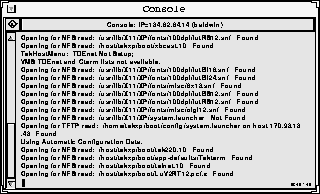
Figure 5-1 Console Window.
The network computer's address and name (if defined) appear on the title bar. You cannot add or delete information from the Console. This window is updated whenever a confirmation or error message is received by the network computer.
Using the Console Window
Often there is more information available than will fit in the Console window. Since the Console window cannot be resized, use the methods listed below to view additional information. You can also copy and paste information from the Console to a command window.
Closing the Console Window
 Select Console from the Client Launcher.
The Console Window disappears from your screen.
[Prev Chapter] [Next Chapter] [Index]