[Prev Chapter] [Next Chapter] [Index]
Chapter 1
A New Piece of Hardware
A box labelled network computer has been delivered to your desk. Maybe it is a replacement for your current personal computer, text-only (ASCII) terminal, or individual workstation. Or, maybe it is to be used with a new system or application. Either way, what is a network computer, and why is this new piece of hardware going to make your job any easier than the piece of hardware you used to use?
What is a Business Network Computer?
The broad definition of a network computer is an internet-capable device that supports the following features and formats:
- minimum screen resolution of 640x480
- pointing device (such as a mouse)
- text input, audio output
- TCP/IP, FTP, NFS, UDP, Telnet
- SMTP, IMAP4, POP3 (e-mail protocols)
- JPEG, GIF, WAV, AU (multimedia file formats)
- Bootp
- HTML, HTTP (web protocols)
- Java application access
This definition includes everything from internet appliances, such as set-top boxes that provide Internet access to your television, to powerful PC servers that meet these requirements. Obviously, not every device that meets these minimum requirements will be useful in a business environment.
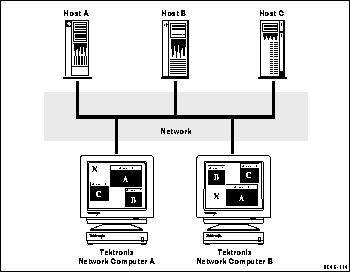
A Tektronix Business network computer is a device-independent, network-transparent, multi-tasking device connected to a host computer in a distributed computing environment. If that makes sense, skip to Chapter 2, Operating the Network Computer. Otherwise, it really is easy to understand what a network computer is, and how it works when you consider each component used in the definition.
Figure 1-1 Typical Distributed-Computing Environment.
Why Use a Network Computer
To better understand your network computer's capabilities and advantages, consider something possibly more familiar, such as a personal computer (PC).
- PC software is loaded onto a (local) disk right in the PC cabinet.
- Network computer software is loaded onto a (remote) disk on a central computer.
 The network computer advantage is that there is probably far more disk space available to the central computer than to a PC. Also, there is typically a support staff to load software and perform back ups on a central system.
- PC software is typically licensed for a single user on a single PC.
- X applications run on a network and are licensed for multiple users.
 Sharing software across the network is usually more cost effective than buying and maintaining separate copies for each user.
- Both devices require logic boards and storage devices (disks) to handle information.
- For a PC, the boards and disk drives are within the cabinet. You can only add a limited number of peripheral devices such as extra disks, printers, or modems.
- For your network computer, some of the boards are inside the logic module, but your network computer takes advantage of the main computing boards, disk drives, and peripherals located on one or more remote computers.
 This is one of the key advantages of a distributed-computing environment. Computing power, storage, and access to peripheral devices like printers can be shared to maximize their use, and provide users with more flexibility. It is also far easier to share information with other users.
How Do You Use a Network Computer
- Unpack your network computer according to the pictorial instructions on the
network computer shipping box.
- Connect the keyboard, mouse, cords, and cables as shown in the pictorial physical installation guide included in the network computer box.
- Verify with your system administrator that the software to support your network computer has been installed on a computer. Ask your administrator if you need specific booting information.
- Power on your network computer and log in.Chapter 2, Operating the Network Computer details these topics.
- Run your applications. Chapter 3, Using the Network Computer describes what to do to get started.
Terminology
Like most new things, there are words and procedures that may need clarification. Before you continue, you may want to familiarize yourself with the terminology used throughout this manual. A more complete list of terms is listed in the Glossary of this book.
- Button (on the display) A small display box within the borders of a window, or inside a dialog box. Generally, clicking on a button activates a function or performs some action.
- Button (on the mouse) The three buttons on the top of the mouse. Table 1-1 shows the factory configuration of the buttons.
Table 1-1 Mouse Button Configuration.
- Clicking Quickly pressing and releasing the Select mouse button without moving the pointer.
- Dialog Box A box where you choose options and enter information. Use the mouse to move from field to field, click on buttons and position the text cursor. Enter information with the keyboard.
- Dragging Pressing and holding the Select mouse button while moving the pointer.
- Moving Changing the location of the pointer on the screen by moving the mouse.
- Pointer An arrow on the screen indicating the current cursor position for selecting or clicking.
- Pointing Positioning the pointer (such as the "x" or "
 " symbol appearing on the screen) on an object on the display by moving the mouse.
[Prev Chapter] [Next Chapter] [Index]