[Prev Chapter] [Next Chapter] [Index]
Typographical Conventions
This manual uses the following typographical conventions:
Table 1 Setup Key and Key Sequences.
Figure 1 illustrates the typographical conventions used in this manual.
The following terminology is used to describe mouse operations.
Pointing: use the mouse to position the pointer on an object on the display
Moving: use the mouse to change the location of the pointer on the display
Clicking: press and release a mouse button without moving the pointer
Dragging: press and hold down a mouse button while moving the pointer
Releasing: release the mouse button to complete a dragging action
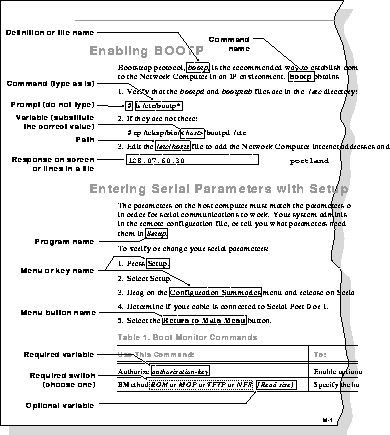
Figure 1 Typographical Conventions.
Network Computer Package
This manual assumes you have installed your network computer according to the included pictorial instructions. Your network computer has the following components:
- The monitor is the screen where text and graphical information is displayed for viewing. You can position the monitor to a comfortable viewing angle by tilting and turning the monitor on its base. You can adjust the brightness and contrast controls according to your preference. The controls are typically located on the front or side of the monitor.
- The logic board is the controller inside your network computer that handles all input and output communications and local processing. Depending on the model of your network computer, the logic board is either located in a separate logic module (connected to your monitor with a special cable) or integrated into the base of your network computer monitor.
- The keyboard is used as the primary method for entering alphanumeric data. You can open the folding legs on the back of the keyboard to adjust the keyboard angle. There are several different keyboards available, in many different languages.
- The mouse is a device used to position a pointer appearing on the display in order to access or select information. It is used as the primary method to move about in a window manager or X window application, access menus, and select options. Information on using the mouse and the mouse buttons is in the next section of this chapter. Trackballs, touchscreens, and tablets can also be used as pointing devices. Contact your system administrator for more information on these devices.
- The communication port is a connector on the back of the cabinet housing your network computer logic board. You connect your existing network cable to this connector. A network cable must be set up for you by your system administrator. This cable must be attached to your network computer in order to run.
- The network computer software is the network computer operating system and support files that your system administrator must load and configure on a host computer so your network computer can start up. If your network computer is an optional ROM-based unit, the software may not be necessary.
The software is shipped on one or more CD-ROMs or magnetic tapes. The disks or tapes, a Network Computer Installation manual and the documentation CD-ROM with various manuals, including the Network Computer Reference manual, are shipped with the software in a separate package from the network computer.
Related Documentation
You can order this documentation from your network computer representative:
The follwing manauals are included in the Documentation CD-ROM, part number 063-2868-XX.
The following manuals are available in paper:
The following documentation is available from Prentice Hall:
[Prev Chapter] [Next Chapter] [Index]
 This symbol indicates additional or background information for the particular section. For example, the symbol is used in Chapter 2 to refer to the specific commands that were set by your system administrator.
 This symbol indicates a Launcher Menu selection. Depending on how your account is set up, the Launcher may already be on your screen. If that is the case, simply use the mouse to select an option. If the Launcher is not present, press the Setup key or key sequence for your keyboard.